
How to set up Account
Short description
About splitting up the file
There are a two main ways to approach using Untitled UI for new projects:
- Duplicate the file for each new project and delete components you know that you won’t need to make the file smaller; or
- Keep the entire library as is, customizing it and building on it to be even better.
When starting a new project, you’ll need to decide whether option #1 or #2 make the most sense. There’s no right or wrong answer here, it’s up to which workflow you prefer.
If you’re leaning towards option #2, it may make sense to split up the library into several smaller libraries. This will take a bit of time and effort upfront, but can be worth it!
Splitting up the file has a few benefits in the long run:
- Each individual library will be smaller and use less memory
- With more than one library, you can publish them independently
- As a result, page load times and publish times will be faster
Do I need to split up the file?
Absolutely not! We always recommend simply sweeping through the file and deleting the components you know you won’t need, either at the start of each new project or as you go.
Do you really need to keep 20 different footer components once you’ve chosen one? Probably not! But it’s entirely your decision whether or not you want to keep them. As Morgan Freeman said in the critically-acclaimed 2003 comedy Bruce Almighty, “You can’t mess with free will”.
We personally find it easier to work from a single library rather than across several, removing components we don’t need as we go. Large files can be slower to work with, especially when Figma isn’t performing as well as it usually does or you’re experiencing a slow internet connection.
How does splitting up the library work?
Figma introduced a move published components feature to allow designers and teams to split up libraries. This feature allows you to move published components to other files without breaking links to instances.
So, for example, if you move your button component to another file but it’s already being used in a few components, you can do this without having to worry about going back and updating everywhere it’s used!
It’s as simple as publishing the original library, cutting and pasting components into a separate file, and then publishing an update to sync the two:
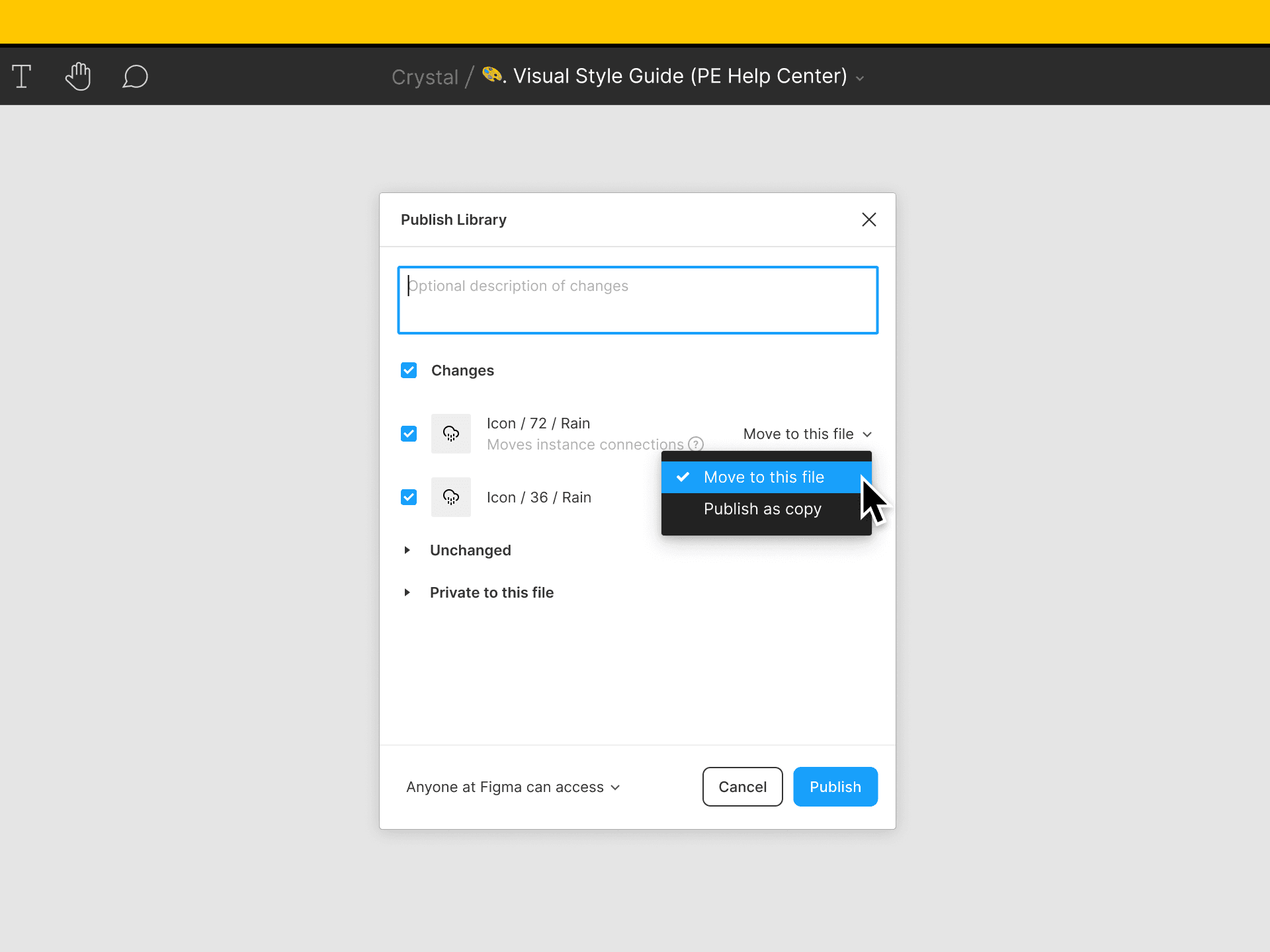
This allows you to split up the main Untitled UI library into smaller libraries. Does this take a while? Yes. But it’ll be worth it if you want to keep all the components and page examples for a project!
Just make sure you periodically clear our “ghost layers” as you split up the file. There’s more on how to do this below.
How should you split up the file?
This is entirely up to you, but Untitled UI is already set up with main sections to help make it easy to navigate. These main sections make great candidates to split into separate libraries:
- Main library: Styles, foundations, and base components/assets
- Marketing components: All of the marketing website components
- Application components: All of the application components
- Page examples: All of the page examples in a separate file (incase you need them)
Of course, there are just suggestions. It might make more sense for you or your team to just start by moving all of the page examples to a separate file to test that out first as they’re quite large.
Why isn’t the library split up already?
Good question! Currently, it isn’t possible to import (or duplicate) more than one file at a time into Figma without breaking links to instances across the files.
Because of this, the file needs to be imported together and then split up into separate libraries (if you want to do that) after it’s imported. Hopefully, this functionality will be introduced soon!
How to remove “ghost layers” and minimize memory usage alerts
When splitting up large libraries in Figma, it can cause a spike in memory usage. To keep you informed of your memory usage, and any potential issues that may arise, Figma displays banners and alerts at certain thresholds:
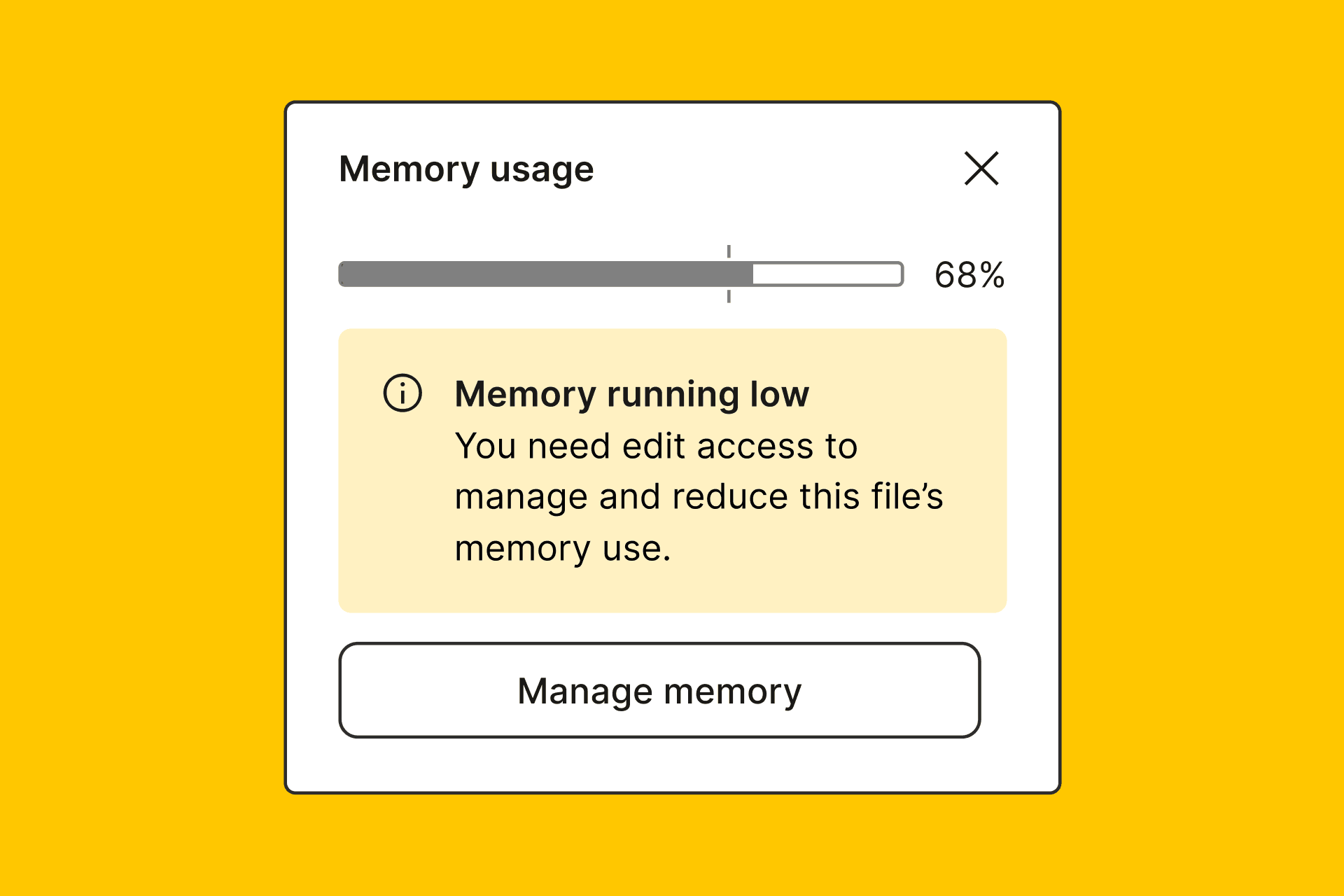
However, we’ve observed a pesky “ghost layers” bug with Figma’s move published components feature that can cause memory issues in large files.
What can happen is deleted or moved components in files accumulate and aren’t “cleared out” from the file. This is a problem because it causes the number of layers continue to accumulate, making files artificially bloated.
You may think that’s you’ve deleted a component, but it still hangs around in the background using up space. This leads to memory usage issues and smaller files can actually be much larger than expected.
Thankfully, Figma’s awesome team have been working on a fix that solves this issue. It’s a script called Compute publish statuses of soft deleted components. What does it do? It forces Figma to “clear out” all these pesky ghost layers.
We recommend running this script periodically to avoid these issues. Here’s how:
Show the manage memory dialog
Show memory usage in Figma by navigating to View and then Manage memory. You’ll then be able to see the total number of layers in the file and memory usage.
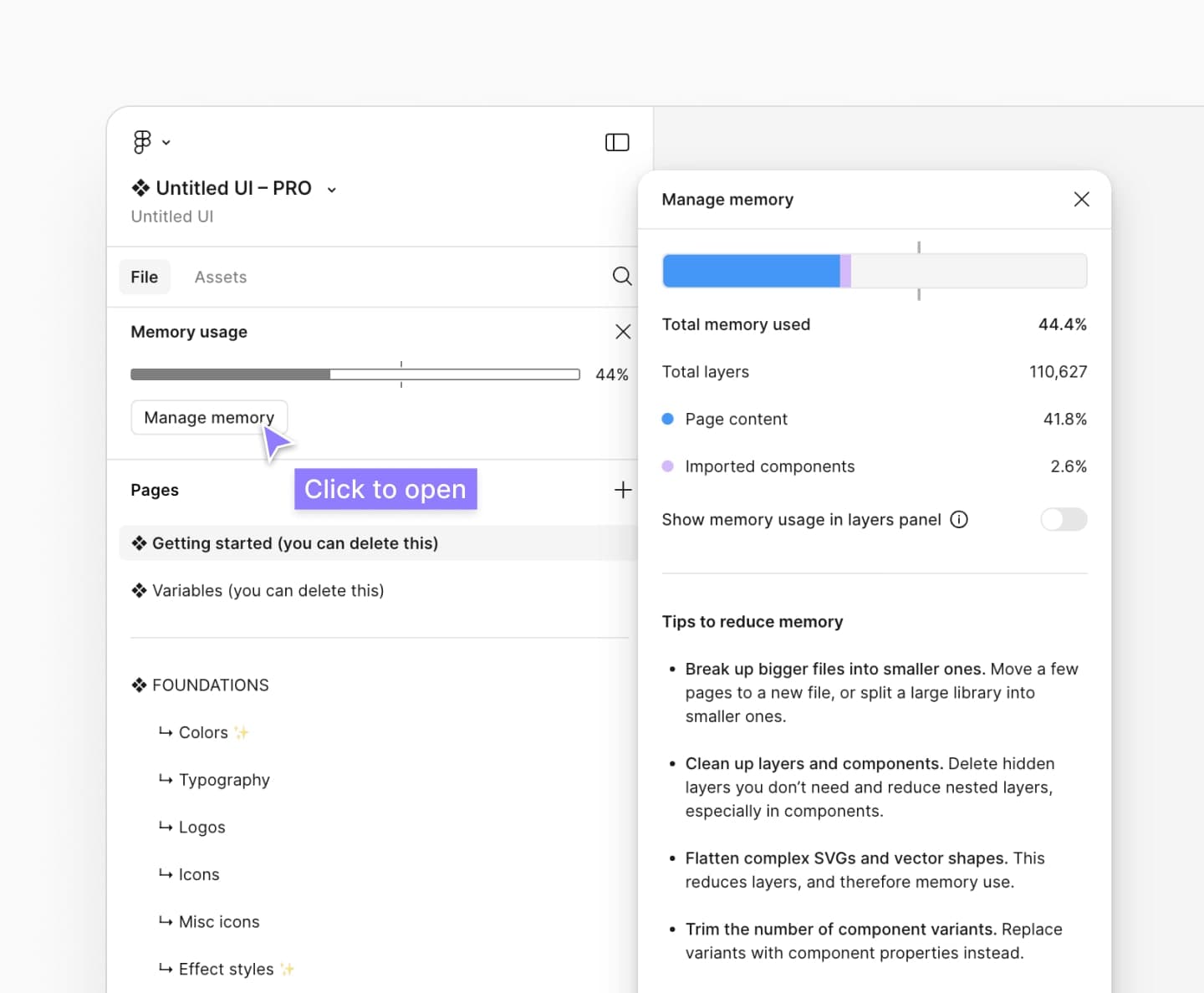
Note: these numbers aren’t always entirely accurate, but are a rough indication.
Compute publish statuses of soft deleted components
Figma have a hidden script that forces Figma to “clear out” pesky ghost layers that may be artificially bloating your file. It’s hidden in the Quick actions menu.
To run this script, open the Quick actions menu and search for “Compute publish statuses of soft deleted components”.
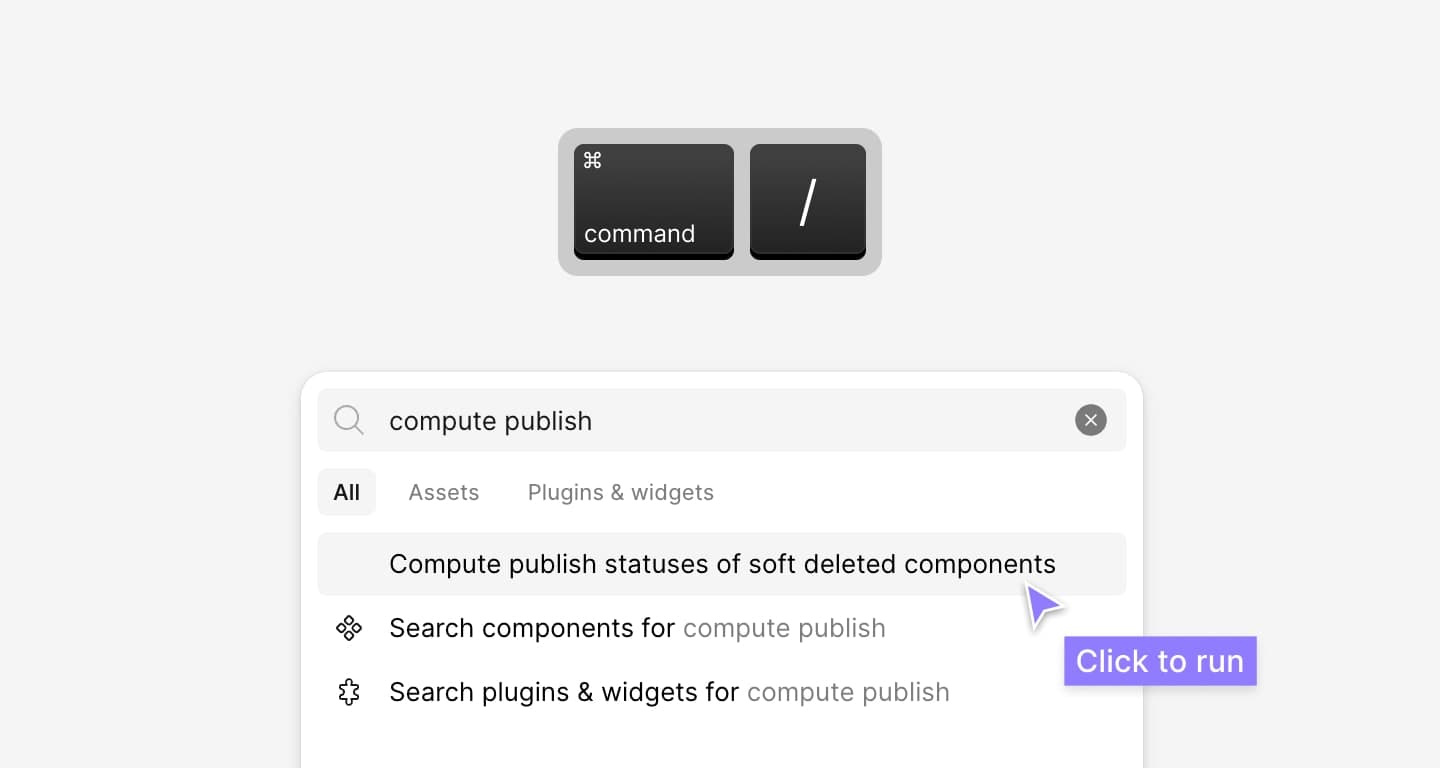
When you run this script, it might look like nothing happens. Don’t worry! It’s running in the background. If you’re curious, you can open up the developer console and you’ll see it working away.
Wait a minute, close the file, then reopen it
Give the script a minute to finish working, close the file, then reopen it. If there were hidden layers cleared out, you should see the number of layers in the file decrease.
Repeat periodically as you split up the file
When splitting up the file into separate libraries, it’s a good idea to run this script multiple times as you go to prevent ghost layers building up and minimize the chances of getting hit with a memory issue!
You don’t have to run it each time you move a component—just batch them up and repeat the process every few pages or so.
Stay in the Loop
Підпишіться на розсилку — інсайти з дизайну, оновлення продуктів і добірка натхнення прямо на вашу пошту.